Automated Access
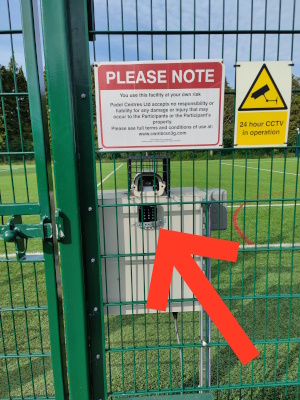
The gate on the Cwmbran 3G pitch is secured by a magnetic lock. The lock is released either via an app or by entering a PIN code into the keypad to the right of the gate.
Using the PIN code
All those who need to access the pitch (i.e. those registered for casual bookings, team coaches and referees, etc.) will be provided with a 6 digit pin code. To open the gate enter the 6 digit pin code and press #. The keypad will beep, the square on the top left will change colour from red to green and the lock will release allowing you to open the gate.
Using the Tuya Smart App
All individuals registered for casual bookings and those nominated by block booking clubs, teams, leagues, etc. will be registered on the Tuya Smart app. This app will allow users to release the gate lock without typing in their PIN code. Please see below for details on how to install and use the Tuya Smart app.
Exiting
To exit (if the gate is locked) press the button under the steel cover which says 'Exit button underneath'. The lock will only release when the button is being pressed. Therefore, you must be pressing the button when trying to open the gate. Alternatively, the Tuya Smart app may be used to open the gate from a mobile. For more information on the Tuya Smart app please see below. Please make sure that the gate is locked shut when you leave.
Please note
In the event of a total power failure, there is battery back-up.
All gate opening events (whether by the app or the PIN code) are logged. Do not share your PIN as it is unique to you.
Installing and using Tuya App
To use the app you must have registered an account on the Tuya Smart App using the same email address as you use on the booking system or as advised to us (see below for installation instructions ), and have an internet enabled smart phone. Opening the gate via the Tuya Smart app is described below.
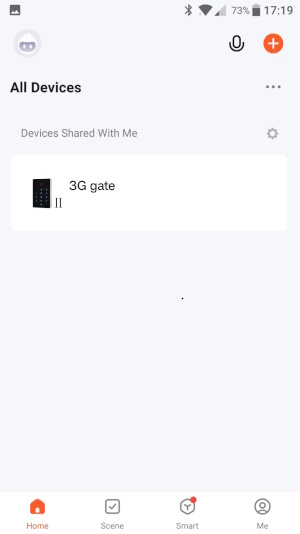
Open the Tuya Smart App and the '3G Gate' should be on the Home screen under 'devices shared with me'. See below:
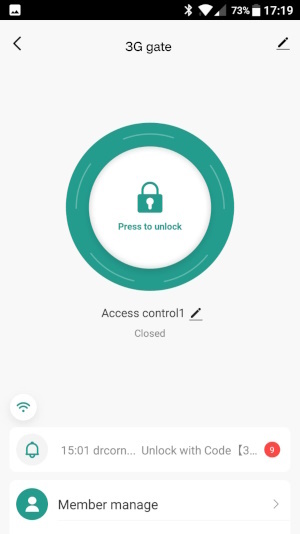
Clicking on the '3G Gate' will open the device and show a large green 'Press to Unlock' button (as shown below). Give this button a long press and you will see the button change to 'opening'. The lock will stay open for around 10 seconds during which time the button on the screen will turn red/orange.
Installing the Tuya Smart App
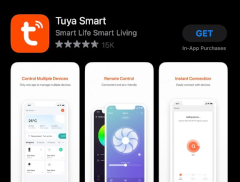
In your phone's Play Store or App Store search for the 'Tuya Smart' app:
| Store | Screenshot |
|---|---|
| Apple iPhone App Store Tuya Smart will be the first organic result below the sponsored app. |
 |
| Android Play Store Tuya Smart will be the first organic result - see the screen shot below. |
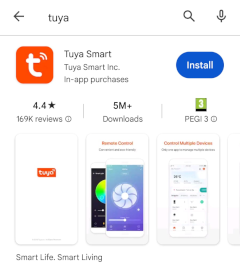 |
Select and install the App. Then open the App and create an account using the same email address as the one you used to register on the 3G booking system or as advised to us by your club/team/league, etc.. You will enter your email address and then receive an authentication code (via email) prior to creating a password.
The '3G Gate' should automatically appear on the Home screen under devices shared with me. You do not need to 'add a device'.
Note 1: setting up individuals on the Tuya app is a manual process and therefore there may be a delay.
Note 2: If you already have an account on the Tuya Smart app but with a different email address (to the one you used to register on the booking system) and want us to add the device to your existing account, please get in touch.
